Guide
How to give us access, step by step
About 20 minutes in all, half of it on a short call with us. Do only the parts that apply to you. We never ask for a password, and you can remove us any time.
Before you start
- We never ask for a password, and you can remove our access any time.
- Do only the sections for accounts you already have. Anything missing, we set up with you.
- For Meta, turn on two-factor authentication in Facebook first, or Meta often blocks ads. Turn on 2FA ↗
Facebook, Instagram and Meta ads
5 minutes, on a computer
Fastest: 2 clicks, we do the rest
-
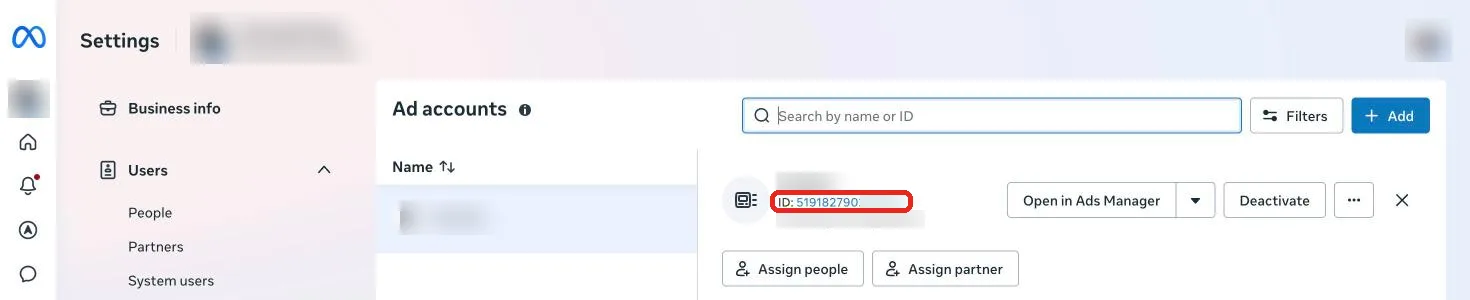
Where to find the ad account ID
The button opens Ad accounts. The ID is under the account name (in the red box on the screenshot).
-
Send us two things on WhatsApp
Your Facebook page link and the ad account ID from the step above. The button opens WhatsApp with the text ready, you just paste them in.
Message us on WhatsApp ↗
Scan with your phone -
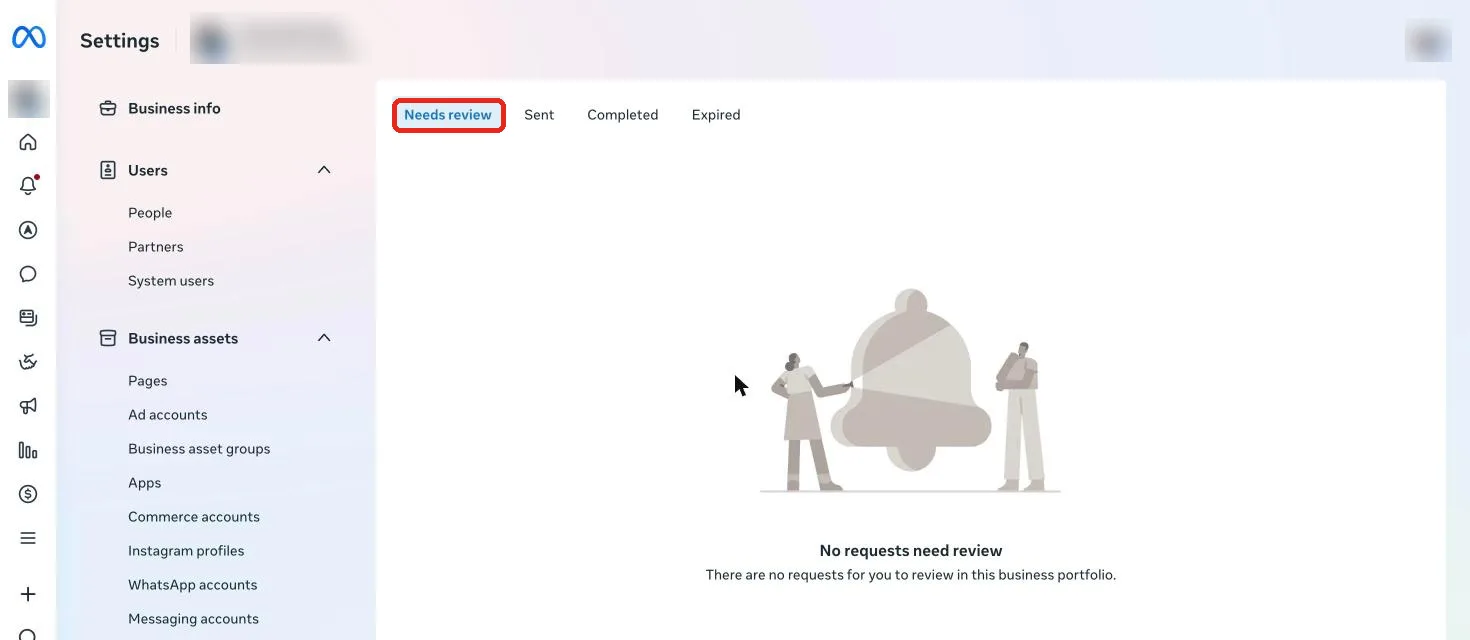
Press Approve
We send an access request. The button opens Requests, the Needs review tab: click our request and Approve.
Or give access yourself, 5 minutes
You add our business as a partner. Everything stays in your portfolio, and we don't need your login.
-
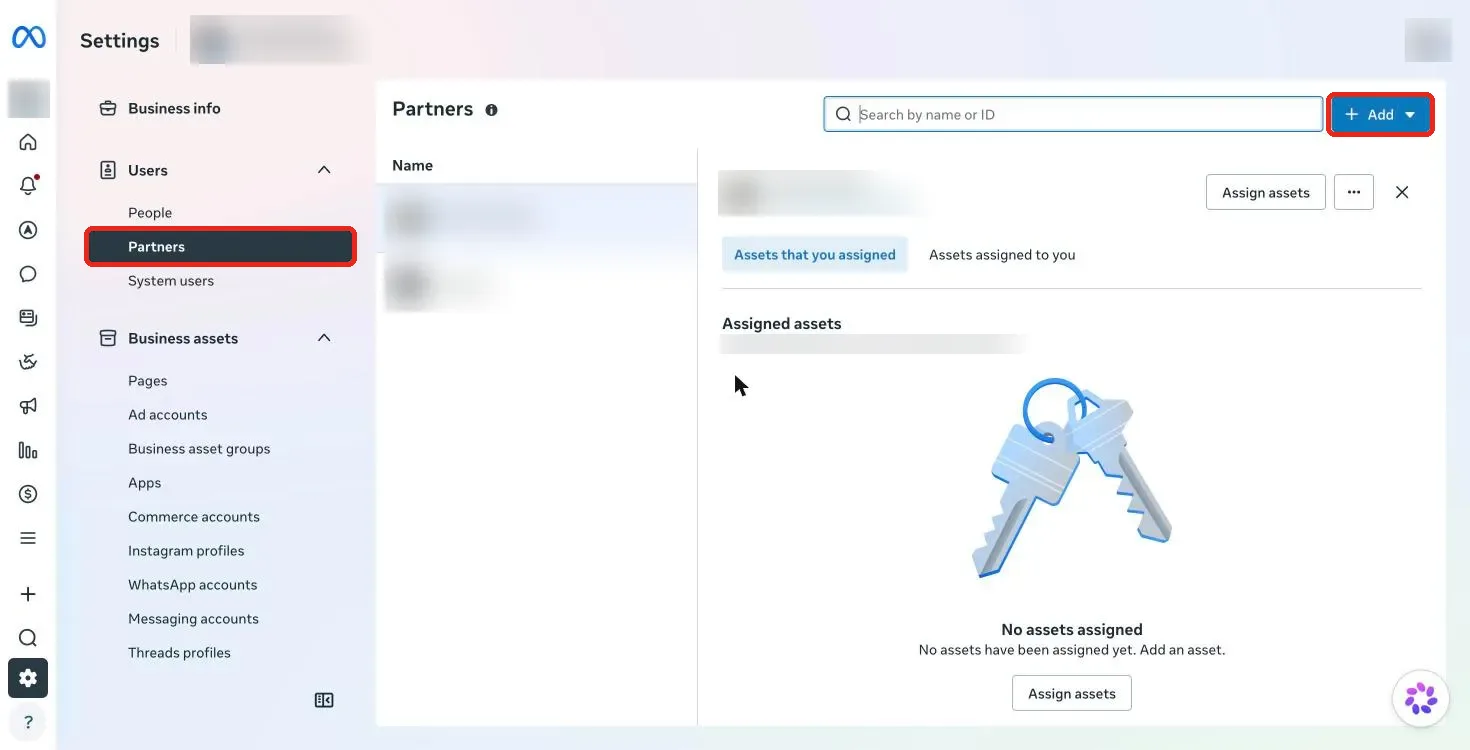
Open Partners in your business settings
The button below opens the right page. If you have more than one business, pick yours at the top left.
-
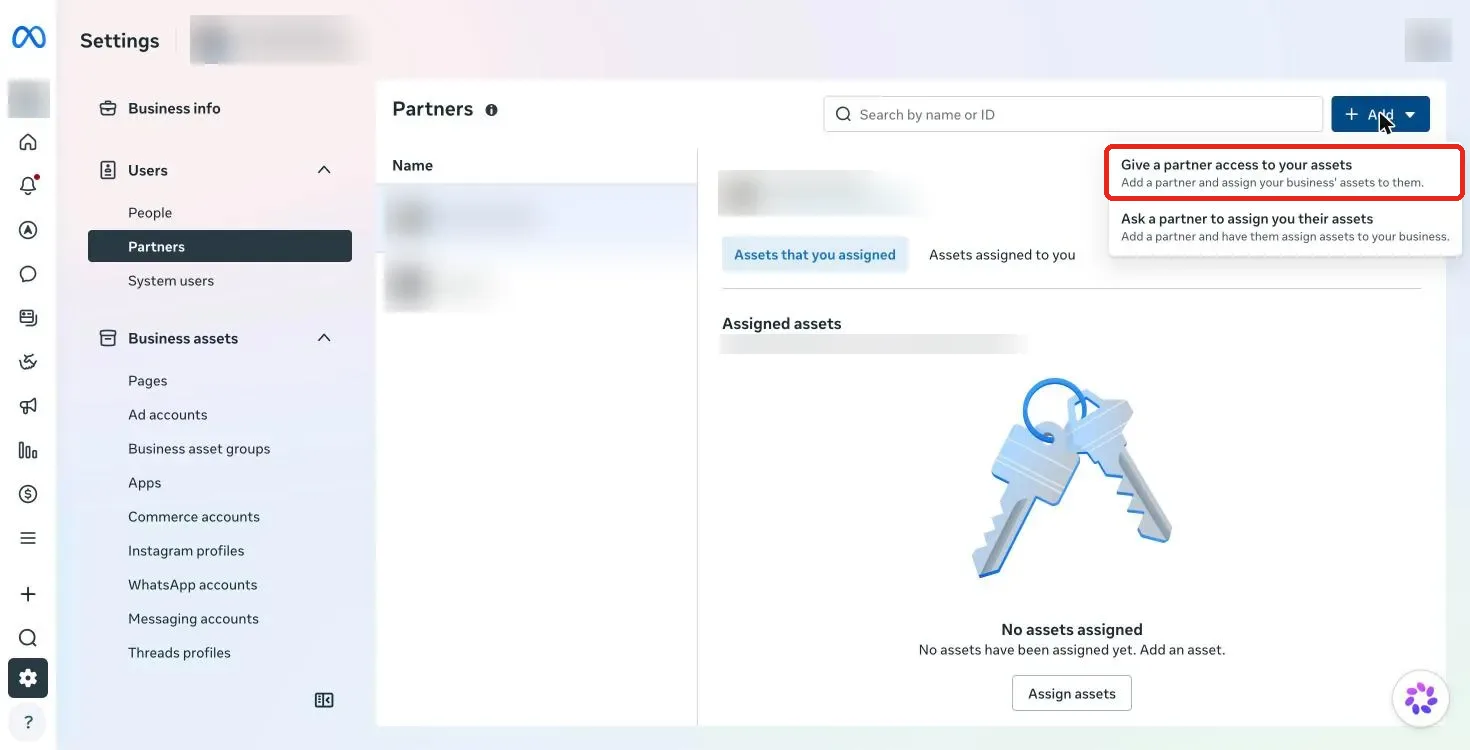
Add a partner
The blue Add button at the top right, then "Give a partner access to your assets".
-
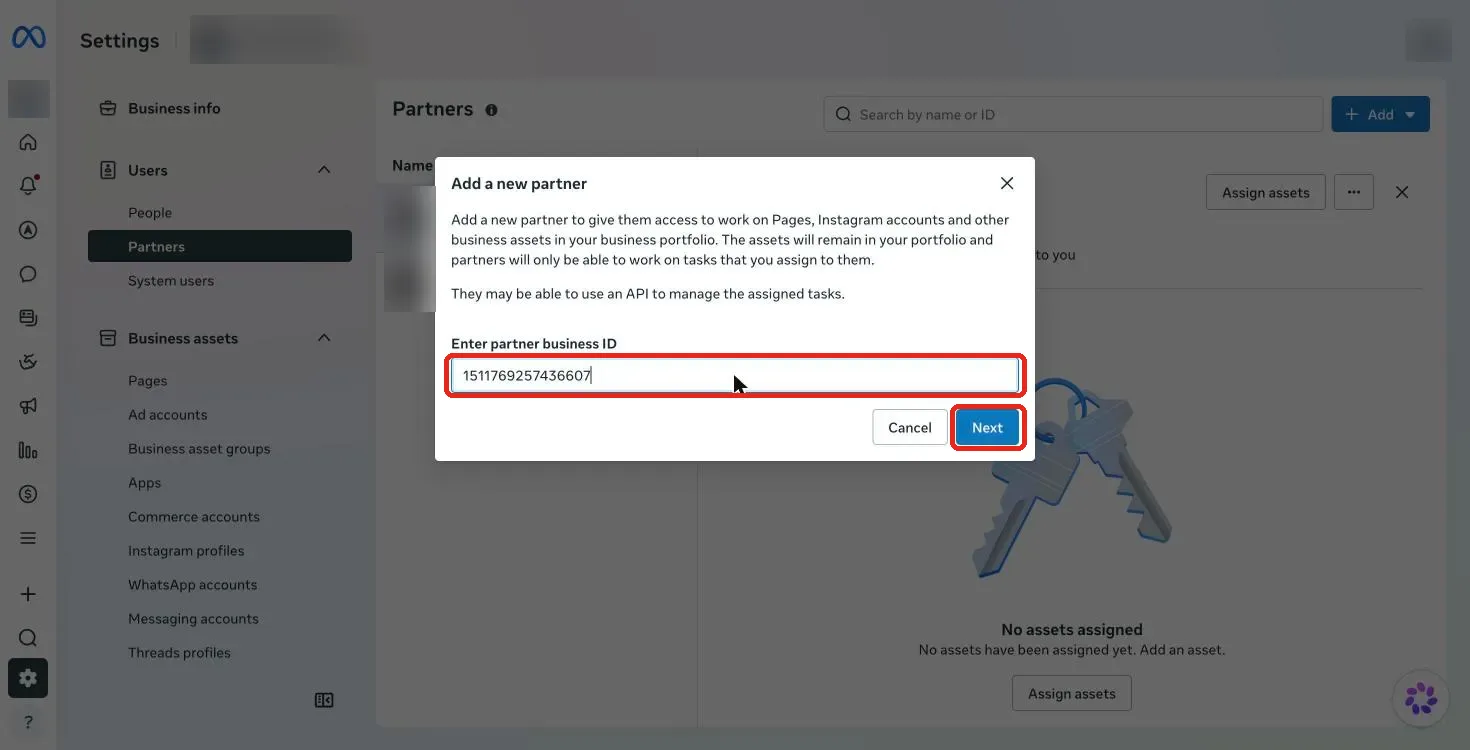
Paste our ID
Copy our Business ID with the button above, paste it and click Next.
-
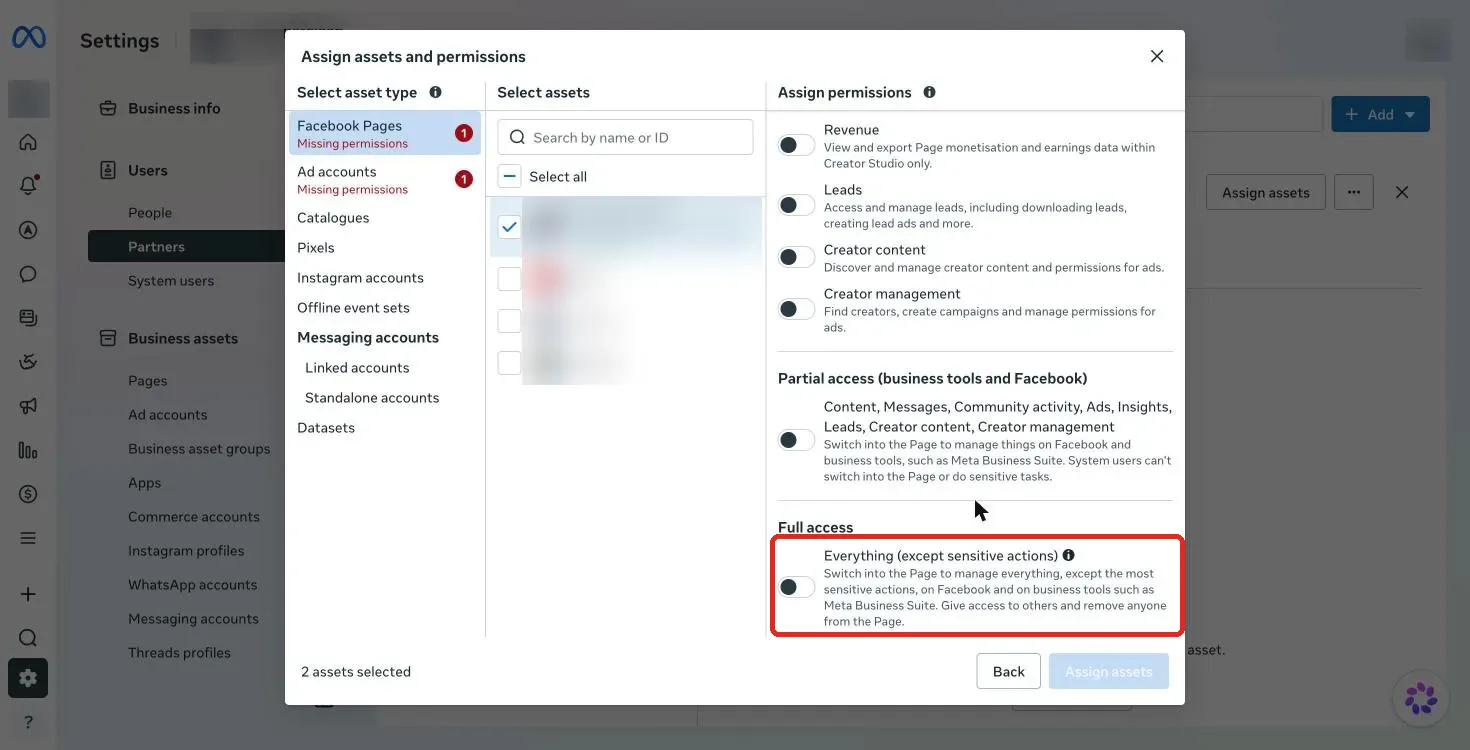
Your Facebook page
On the left, Facebook Pages. Tick your page, scroll the right-hand panel down and switch on "Everything" under Full access.
-
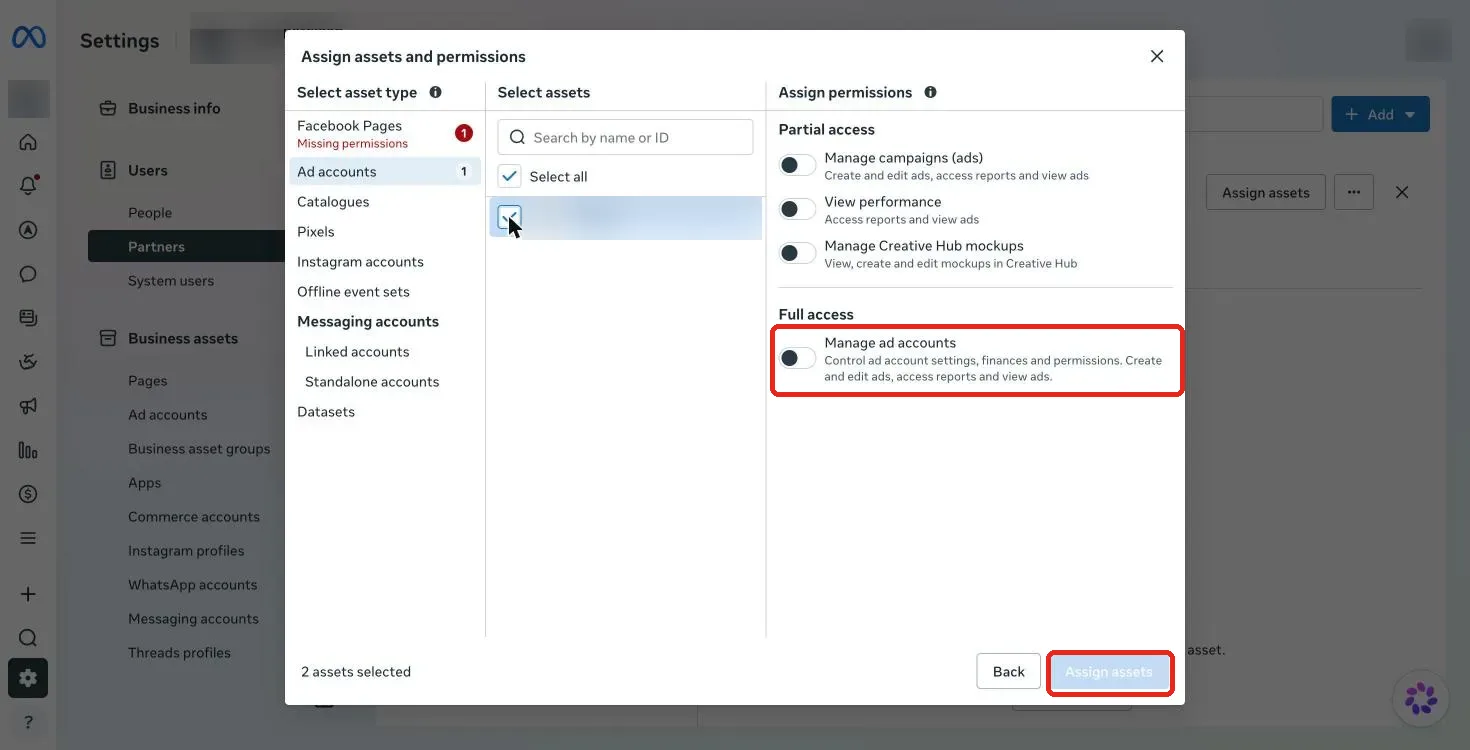
Your ad account
On the left, Ad accounts. Tick your account and switch on "Manage ad accounts" under Full access.
-
Instagram and pixel, if you have them
The same in Instagram accounts and Datasets: tick and give full access. Then click Assign assets at the bottom. Done, we get a notification.
Google Business Profile
2 minutes, on a computer or phone
-
Open your profile
The button below opens your list of businesses. Click the name and Google shows the "Your business on Google" panel.
Open my profile ↗
Scan with your phone 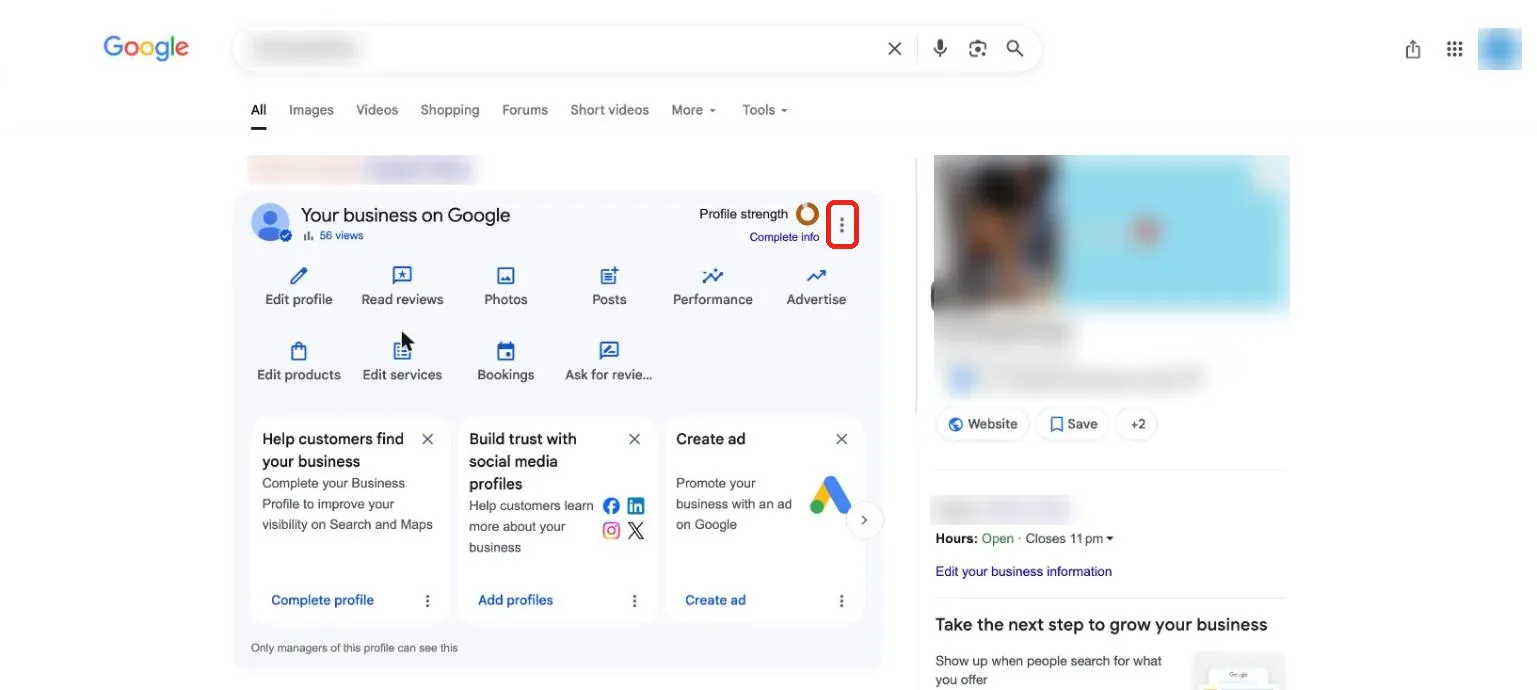
-
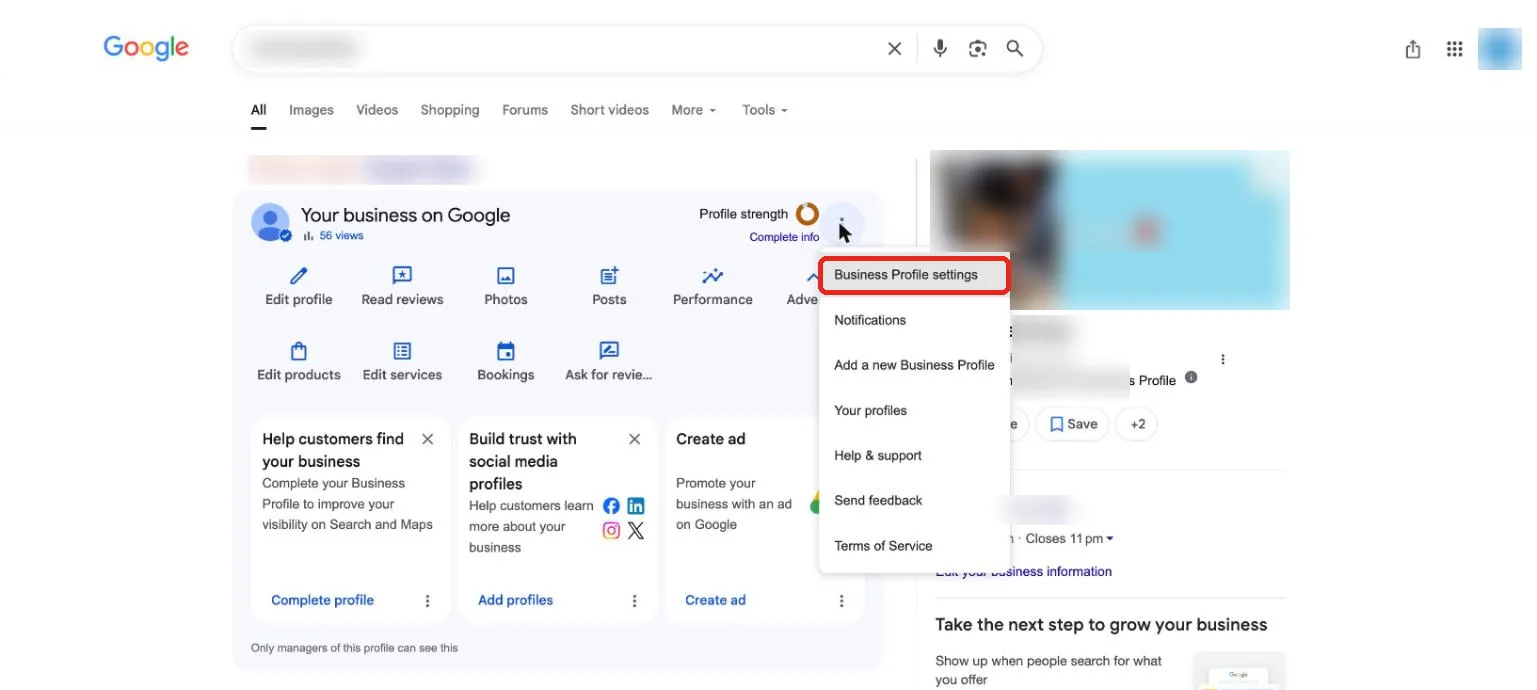
Profile settings
The three dots to the right of "Profile strength", then Business Profile settings.
-
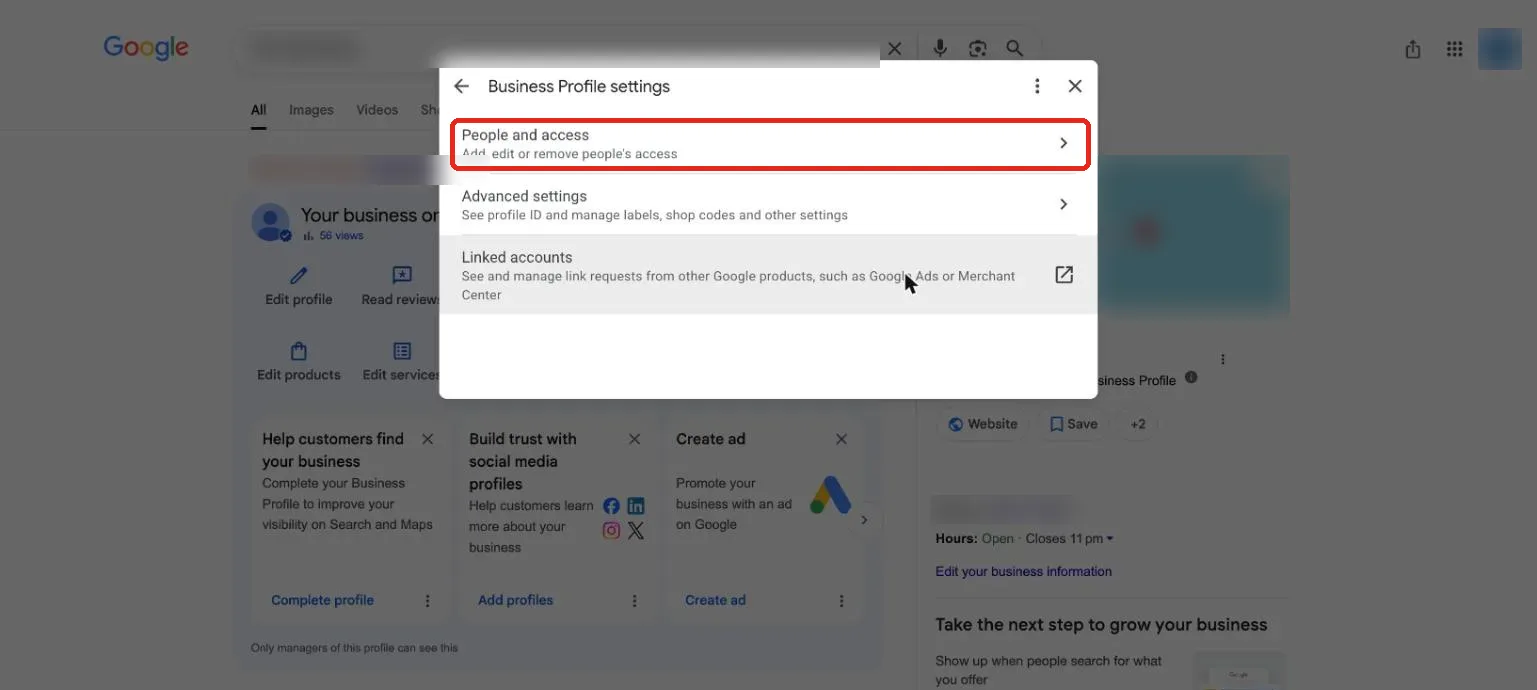
People and access
Click People and access.
-
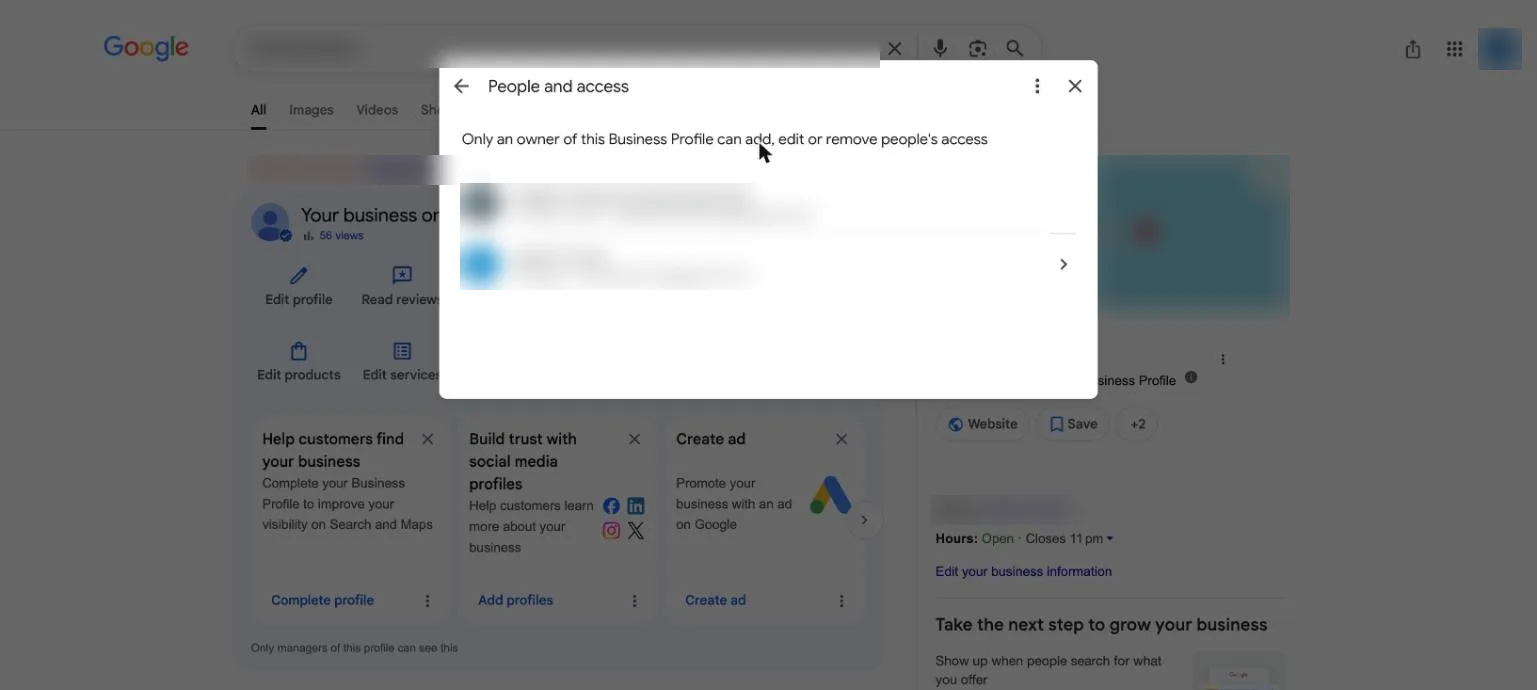
Add us as a manager
At the top right, the person icon with a plus (Add). Enter our email, choose Manager, click Invite. If it says only an owner can add people, someone else owns the profile: ask them, or message us.
Profile not verified yet? Verify it first: Google asks for a short video or a postcard. We'll tell you how.
Google Ads (only if Google is one of your channels)
2 minutes, on a computer
-
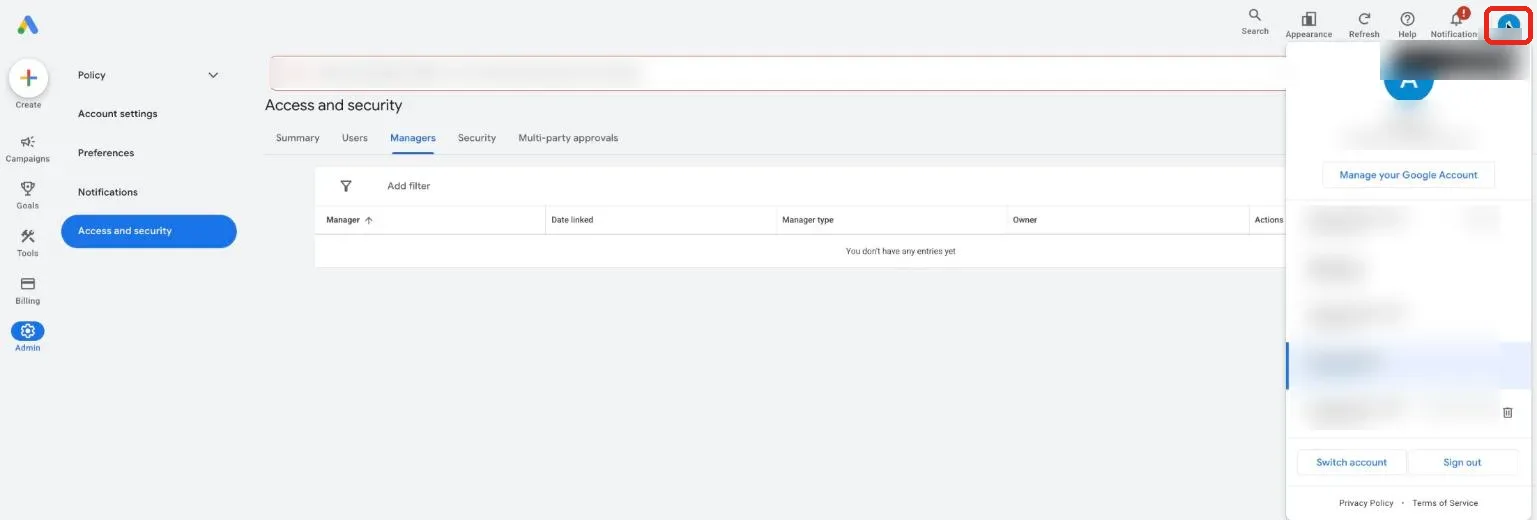
Find your customer ID
In Google Ads, click the round profile icon at the top right. Under your account name there are 10 digits, like 123-456-7890. Send them to us.
-
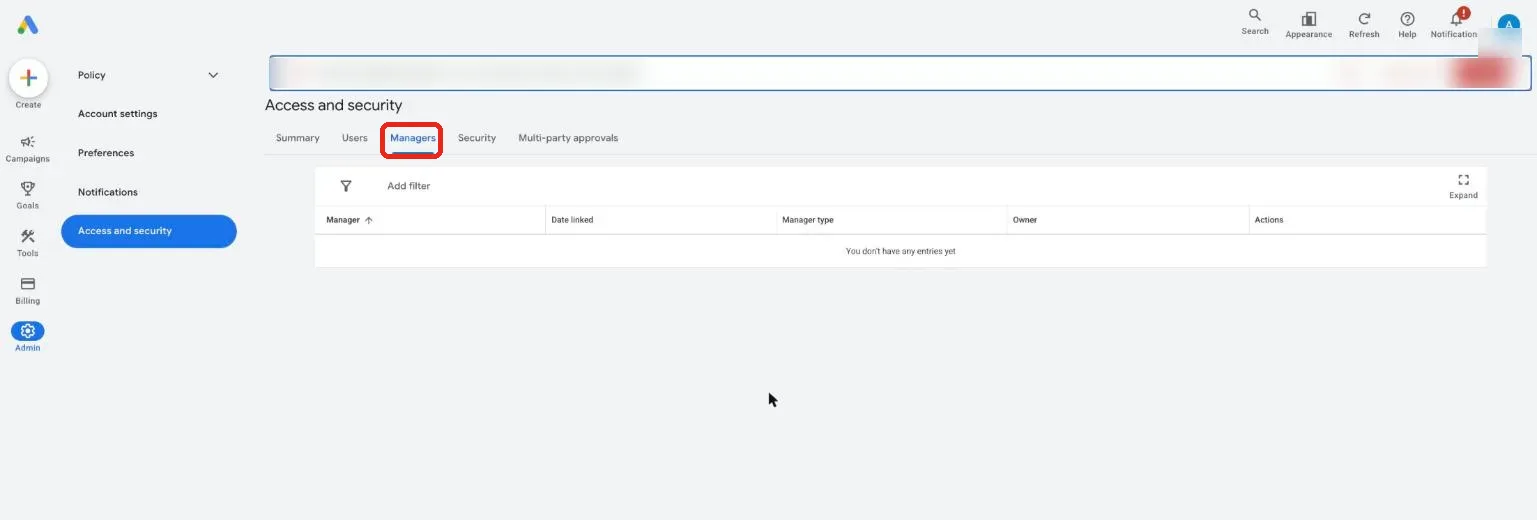
Accept our request
We send a link request. The button below opens Admin, Access and security, the Managers tab. Our request shows there: click Accept.
No Google Ads account? Don't create one yourself: Google pushes a simplified mode where ads work worse. We set it up with you.
WhatsApp Business
2 minutes on your own + 10 minutes together
-
Put WhatsApp Business on your work number
It's a separate green app with a B on it. Your old chats come across and the number stays the same. Scan a QR code with your phone, or tap iPhone or Android.
-
We connect the assistant together
The connection starts on our side. Meta shows a one-time QR code, you scan it in WhatsApp Business and confirm. The code lasts a few minutes, so we do it on a short video call, about 10 minutes. The number, the chats and the app stay yours, and you keep replying from your phone as usual.


Website and domain
nothing to do now
We build the site
We build it on our own platform, so we don't need passwords for your old one.
The domain stays yours
When the site is ready we'll tell you the one record to add in your domain settings, or do it with you.
Stuck?
Message us on WhatsApp and we'll go through it with you. A screenshot of what you see is enough.
